
Essentials for YOOtheme Pro
Facebook Integration
The Facebook integration is available through Facebook Source and is also used when authenticating Instagram Business accounts through the Facebook Auth driver in Instagram Source.
For better control, security, and flexibility, you can create a custom Facebook developer app and use its Access Token with the Facebook Auth driver when configuring Facebook or Instagram Business sources.
1. Create a New Dev App
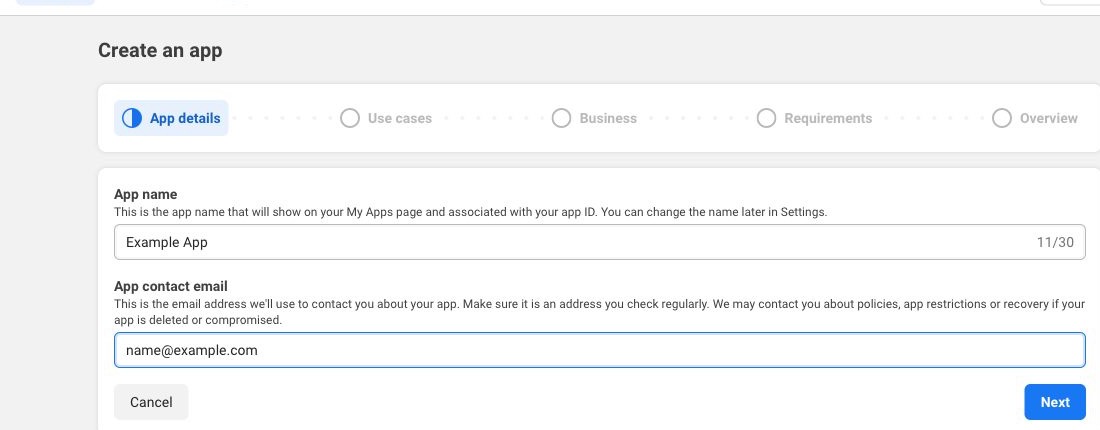
Go to https://developers.facebook.com/apps/creation, fill in the app details, and continue.
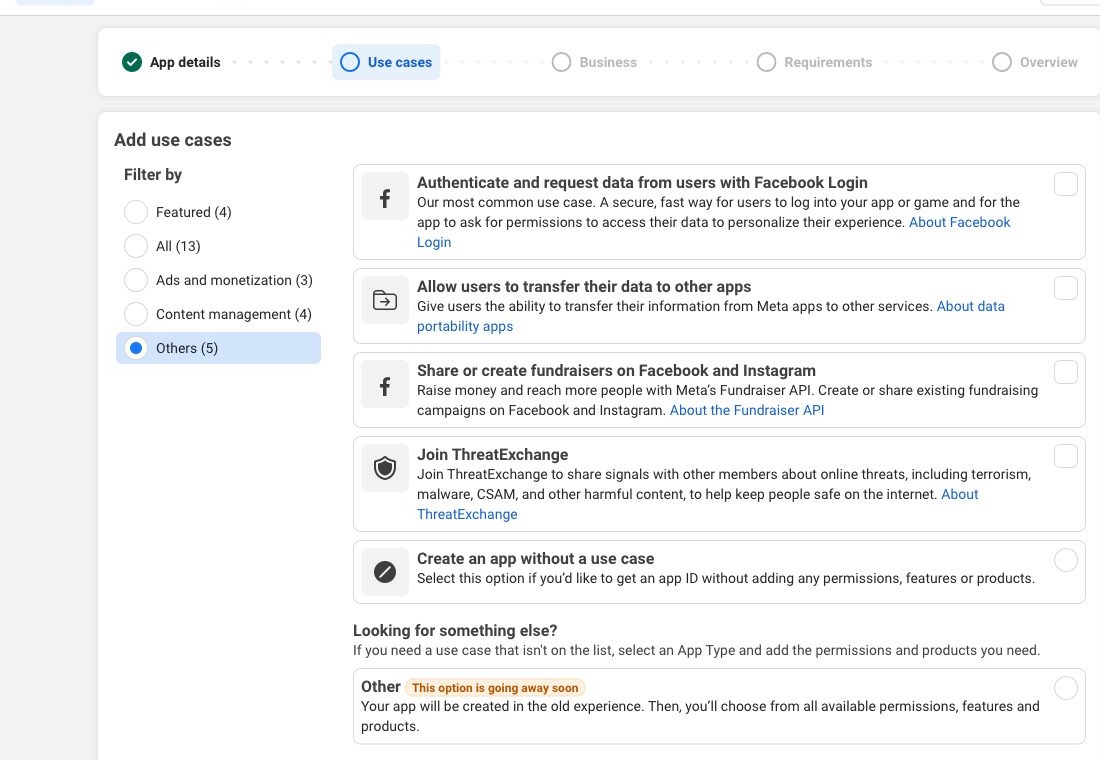
On the Use cases step, choose Other under the Others section. This is the route that leads to the product-based app setup required for this integration.
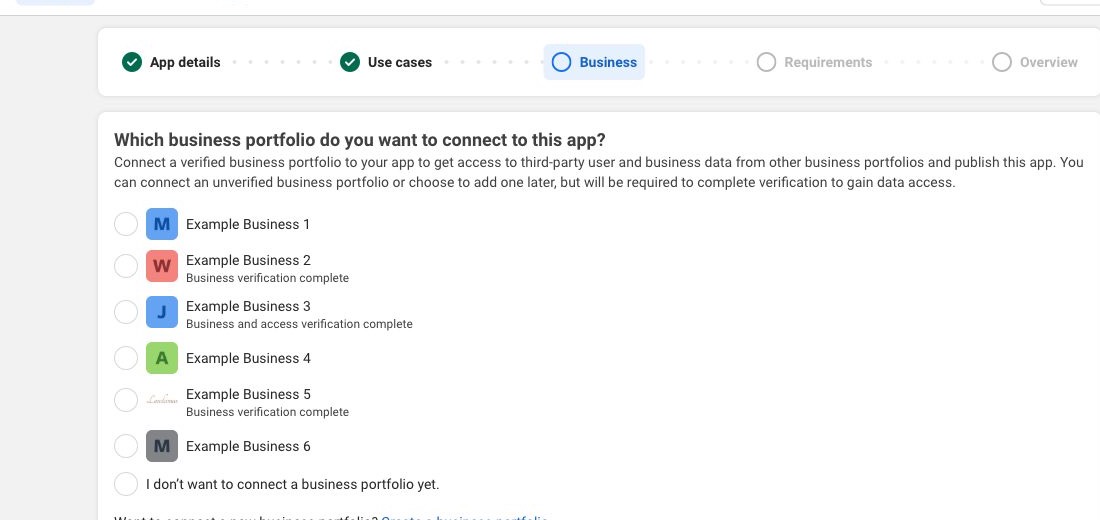
On the Business step, connect the business portfolio you want to use for the app.
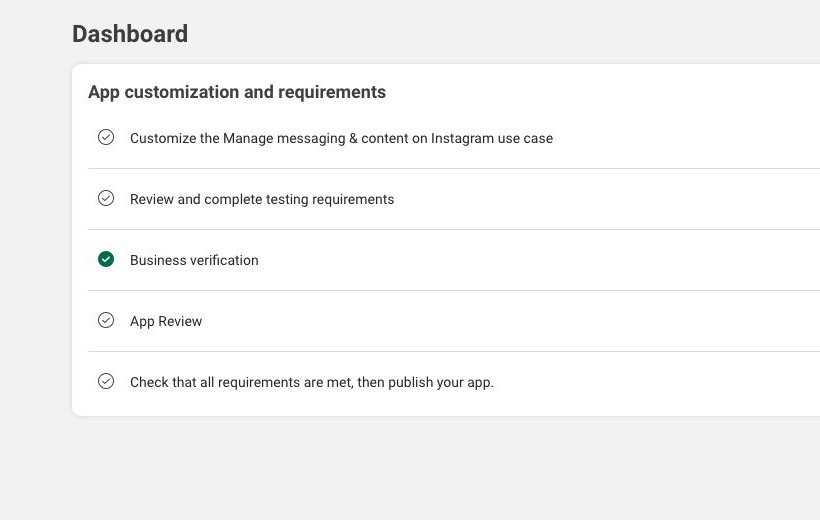
After the app is created, open the dashboard and add the products required for the integration:
- Facebook Login for Business
- Instagram API
Meta has renamed and reorganized parts of the Instagram platform over time, so older references to Instagram Graph API now map to the current Instagram API for professional accounts.
2. Generate Access Token
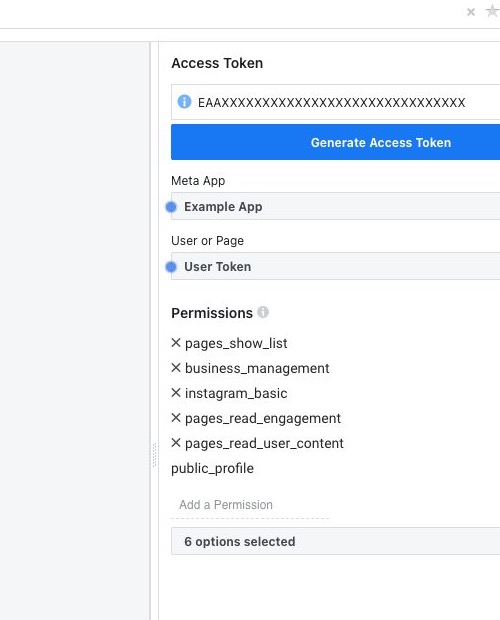
Go to the Graph API Explorer, select the app you just created, and request the permissions your source needs.
For the Facebook and Instagram Business sources in Essentials, use:
- instagram_basic
- pages_show_list
- pages_read_engagement
- pages_read_user_content
- business_management
Be sure that the list matches with the screenshot and Generate Access Token.
- Sign in with the Meta account that owns the app, or an account assigned to the app as an Administrator, Developer, or Tester.
- Select the business assets you want to authorize.
- Select the Facebook Pages you want to allow.
- If applicable, select the Instagram professional accounts connected to those Pages.
- Confirm the requested access.
Account Permissions
While the app is in development mode, only people with an app role can generate tokens that work with it. If you try to authorize with a different account, Meta will require app review and a published app before the token can be used broadly.
After the token is generated, open it in the Access Token Debugger to inspect the granted permissions and expiration.
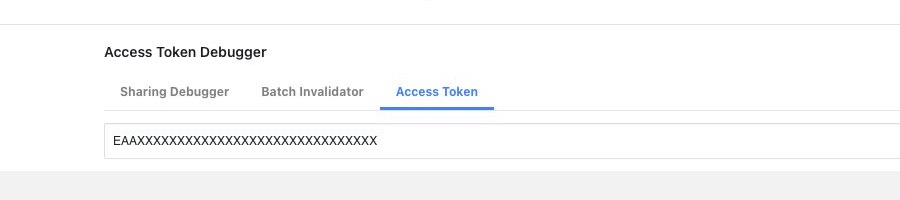
If Meta offers the option, extend the token and copy the updated value. Use that token when authenticating a source with your custom app.
Instagram Business Requirement
Meta's current Instagram API with Facebook Login works only with professional Instagram accounts and requires the Instagram account to be connected to a Facebook Page. For personal Instagram accounts, use the dedicated Instagram Auth flow instead.
3. Authenticate a Source
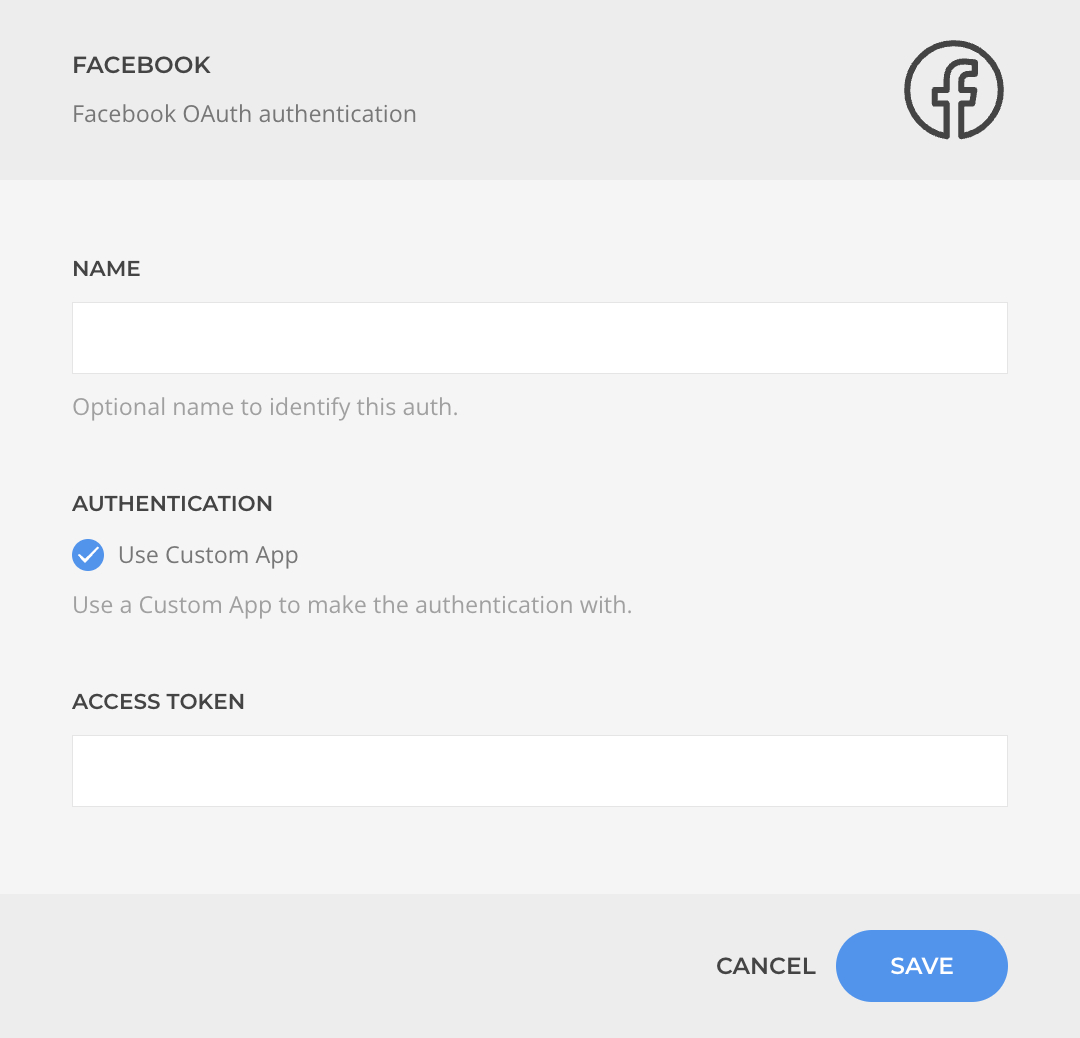
Now that you have an access token, create a Facebook or Instagram Business source. When authenticating choose Custom App, paste the generated access token, and complete the source setup.
Token Expiration
The token can still expire or become invalid if the user changes permissions, loses access to the business assets, or the token is not refreshed for a long time. If that happens, generate a new token and reconnect the source.