
Essentials for YOOtheme Pro
Updating
Keep your Essentials installation up-to-date with the latest features and security improvements. You can update manually, use one-click updates, or set up automatic background updates through your platform.
TIP
Before making any updates perform a full backup of your site and make sure the backup is recoverable.
Update Manually
Manual updates allow you to download and install Essentials updates directly from your site without relying on automatic update systems. This method gives you full control over when updates are applied and is useful for sites with restricted server permissions or custom hosting environments.
Download
- Log in to your ZOOlanders account
- Go to Downloads
- Find Essentials YOOtheme Pro targeted release
- Click Download to save the release
.zipfile
Install
Joomla
- Log in to your Joomla admin panel
- Navigate to
System → Install → Extensions - Under Upload Package File, click Browse and select the downloaded
.zipfile - Click Upload & Install
- Once installation is complete make sure the plugin is enabled
WordPress
- Log in to your WordPress admin dashboard
- Go to
Plugins → Add New Plugin - Click Upload Plugin at the top
- Click Choose File and select the downloaded
.zipfile - Click Install Now, confirm when prompted about overriding current
- Once installation is complete make sure the plugin is active
Verify
- Check version number - Confirm Essentials shows the new version number in your admin panel
- Test functionality - Verify your site works correctly (forms, dynamic content, etc.)
- Clear caches - Clear all site and browser caches
- Monitor for errors - Check error logs for any issues over the next few hours
TIP
If you encounter issues after a manual update, restore your backup and contact support with error details from your site logs.
Update Automatically
One-click updates allow you to manually trigger updates with a single click from your site's admin panel. Both Joomla and WordPress can be configured to check for and install the latest Essentials updates with minimal effort.
Before using one-click updates, ensure to:
Set Your Download ID
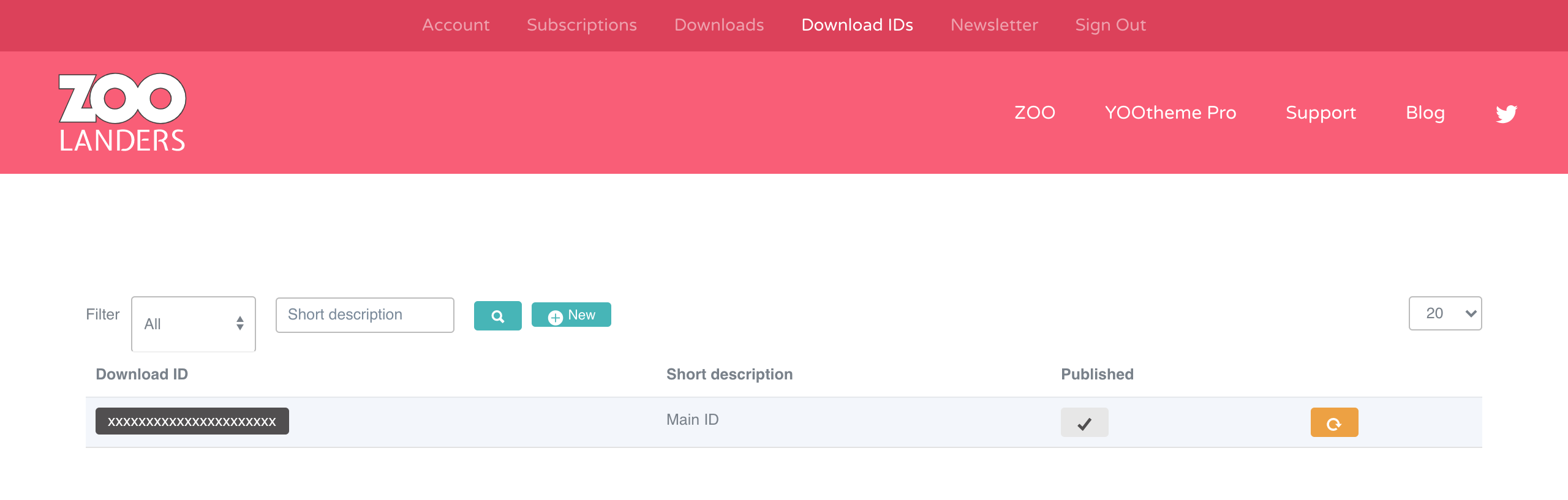
An Essentials Download ID is a unique alphanumeric code generated for each website. It authenticates update requests and is required for automatic updates to function.
- Log in to your ZOOlanders account
- Navigate to Download IDs
- Copy your Download ID from your website entry (or generate a new one as needed)
- Configure it in your platform's settings.
Joomla
- Log in to your Joomla admin panel
- Navigate to
System → Update → Update Sites - Find
Essentials YOOtheme Proin the list - Click to edit it and paste your Download ID in the designated field
- Save the changes

WordPress
- Log in to your WordPress admin dashboard
- Go to
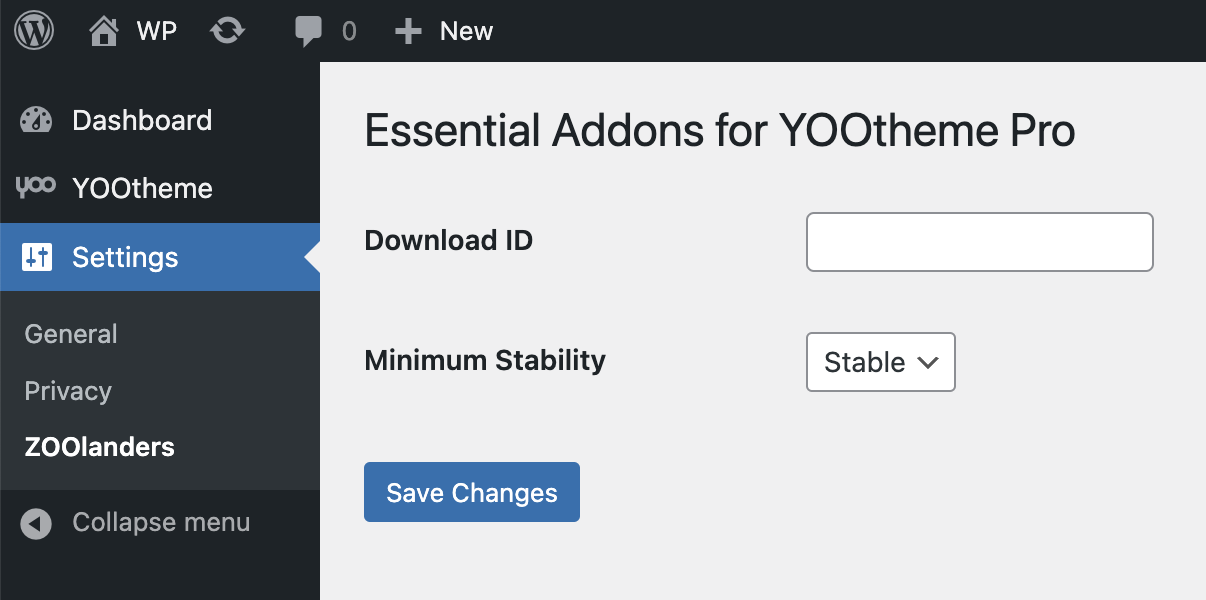
Settings → Global Settings(or the top-level settings menu) - Locate the ZOOlanders panel/section
- Paste your Download ID in the provided field
- Click Save Changes
Set Minimum Stability Level
The minimum stability setting determines which types of releases your site receives.
| Release | When to Use | Testing |
|---|---|---|
| Stable | Production sites in live environments | Thoroughly tested by both our team and the community |
| Beta | Development/testing sites or early adopters | Tested by our team; helps identify issues before stable release |
Joomla
- Log in to your Joomla admin panel
- Go to
System → Global Configuration - Open the Installer tab
- Set Minimum Stability to your preferred level
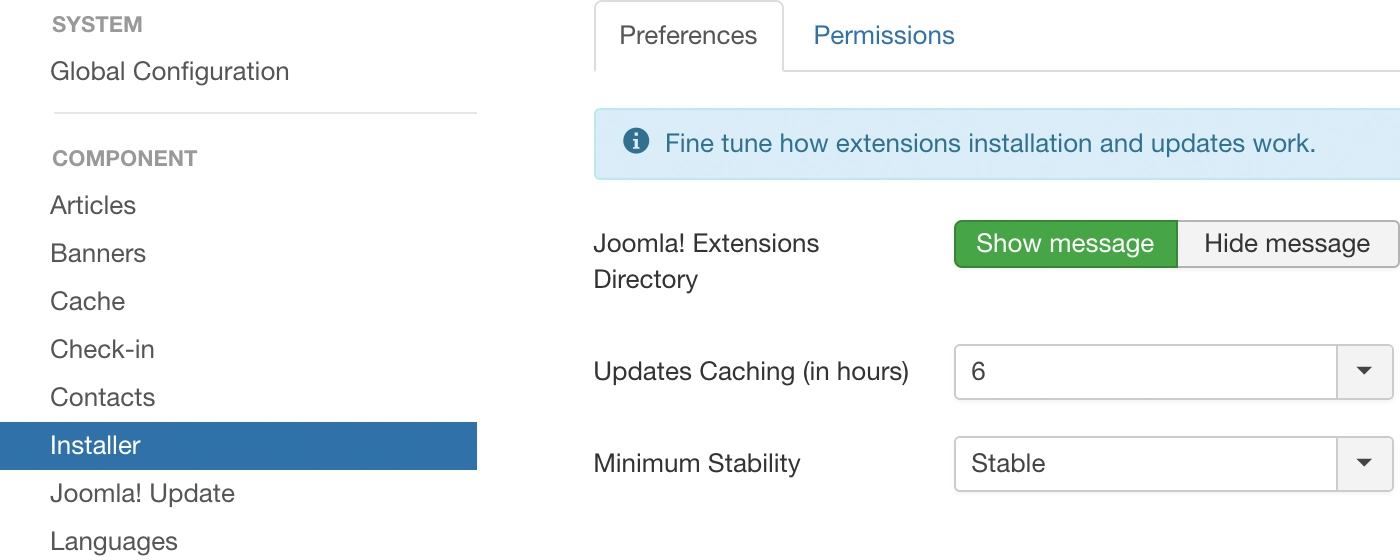
Important: This setting applies to all extension and theme updates on your Joomla site, not just Essentials.
WordPress
- Log in to your WordPress admin dashboard
- Go to
Settings → Global Settings - Find the ZOOlanders panel
- Select your preferred Minimum Stability level
- Click Save Changes
This setting affects only Essentials updates on your WordPress site.
Trigger Update
Navigate to System → Update Manager in Joomla or Plugins → Installed Plugins in WordPress and look for Essentials. If a new version is available it should be listed and presented with an option to update. The system will make the download and update for you automatically.
TIP
If Essentials update is not listed, but there is a new release, try refetching or clear system cache.
Update Major Release
When updating Essentials v1.x to v2.x, or v2.2 to v2.3, plan carefully as those version introduce major changes and have specific compatibility with YOOtheme Pro. In order to properly update, follow these steps in the given order.
- Make a full, restorable backup of the site.
- Head over to System > Plugins and disable the Essentials plugin.
- Upgrade YOOtheme Pro to latest stable version.
- Upgrade Essentials to latest stable version.
- Head over to the plugins manager and enable back the Essentials plugin.
Thoroughly clear all caches, and test. If anything goes wrong, restore the backup and reach out support.
Upgrade From Freemium
The upgrade from Essentials Freemium to Premium version is as simple as installing the premium package without uninstalling the freemium one. The upgrade process must be done manually, automatic updates will be possible after.